This post may contain affiliate links; by clicking on and buying through these links I will earn a small commission, at no extra cost to you: helping me to keep Blind Girl Adventures running.
What is alt text?
Alt text is another name for Photo Descriptions, captions or verbal explanation of Pictures or Images.
I’m talking about all text today, I’ve been blogging since 2015 and not so subtly shouting about it to everyone I meet online, I feel not enough people know what it is, what it’s for, and its purpose.
I’ve only been blind, and a screen reader user since 2013, and I openly put my hands up and admit that I too didn’t realise the importance of photo descriptions online, or even how to do it myself! So, firstly, what is alt text?
Alt text , also known as alternative text or alt attributes are used within HTML code to describe the appearance and function of an image on a page.
There are three main uses for alt text:
Alt text is for blind people and those who use screen readers.
The primary reason for alt text is for blind people who use screen readers. People who are visually impaired use screen reading software to help them navigate around a computer, online or offline.
The screen reading software, I use is apples inbuilt accessibility features, called voice-over, which audibly announces everything that is on my screen. By double tapping my iPhone or using keyboard shortcuts I can use phones, tablets and computers just like you. The importance of alt text is voice-over reading the images on your website, blog or even social media.
If you use alt text correctly: Describing exactly what is in your photo or image-don’t worry, I’ll be going into this in much further detail later – then myself, and your other blind or low vision, audiences will be able to know what is in your images!
Alt text when images don’t load correctly on your website.
The second function of alt text is for when your images don’t load on your website correctly, it will come in place of your image. For example, if your website is being slow: Alt tex is the writing that will pop up in place of the image. Think back to when Facebook and Instagram had a mini meltdown and all you could see was the wording of the artificial intelligence of what the image was presumed to have in it?
This is now advance because both Facebook and Instagram have installed these features for their visually impaired users, however, this will not happen automatically on a blog, website or social media and it’s why it is so important to create appropriate and descriptive alt text tags.
Alt Text And SEO
The third function of alt text is for SEO (search engine optimisation).
For those of you who are not bloggers, this just means search engine optimisation.
Search engines and other robots cannot interpret images, but images can play a crucial part in how people interpret a particular web page. Alt tags solve for this by providing text which is read by the search engines. When Google or other search engine crawlers inspect a page, images with properly formatted alt text contribute to how the page is indexed and where it ranks.
Alt text is not for keyword stuffing!
This is a misconception in the blogging community.
Everywhere I look there are bloggers and “social media gurus” telling you to copy and paste the title of your blog post into the alt attributes/alt text area.
This frustrates me to no end because it’s incorrect and no one is bringing them up on it. Yet, if you do your research, Moz talks about how to use alt text correctly in this post.
If you were to close your eyes, or God forbid, become visually impaired or blind, and someone was describing a picture to you: it’s likely that you would want as much description as you could possibly ask for. I appreciate that it may take you a few minutes longer to write the alt text descriptions out but actually it makes such a difference to blind people like me Who are visually impaired and use screen readers.

How to effectively write alt text on blogs.
Supercharge your alt text
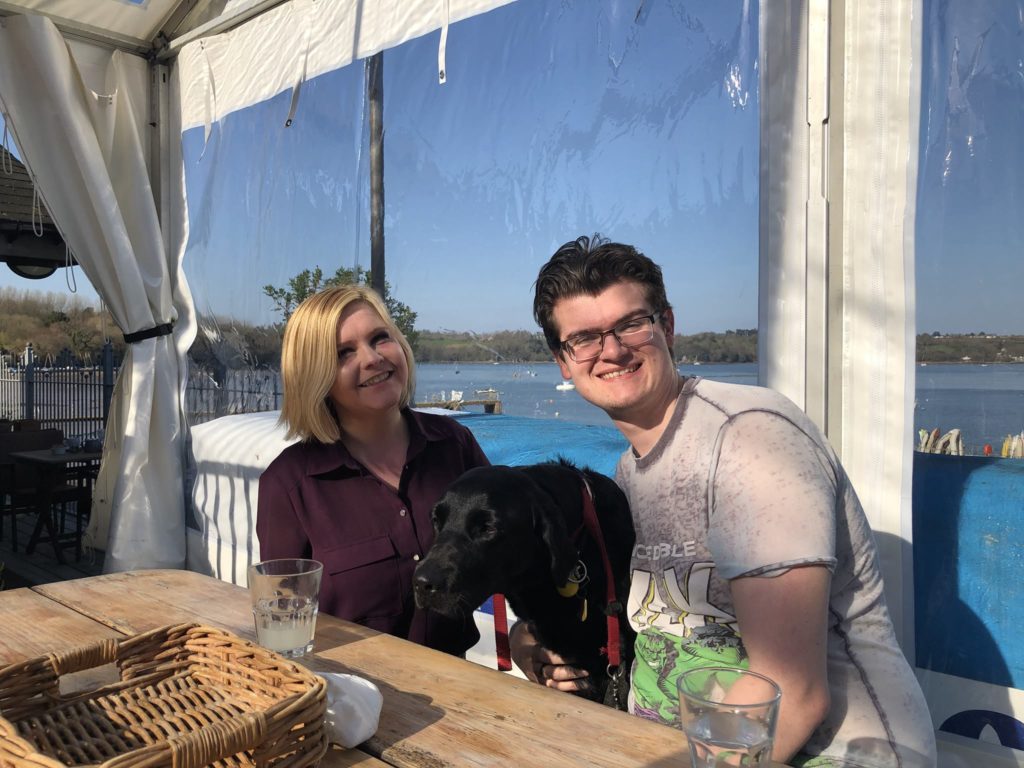
You may have noticed the Photo I’ve added within this blog post, which is also the featured image of the post. IF you are not a screen reader user it is unlikely that you will have noticed the level of detail I have included within this photo.
For those of you that feel confident in up scaling your photo description efforts, here is a very detailed photo Description/ alt text description of the photo.
As a totally blind person I really appreciate all the details being explained, I genuinely feel like I am looking at this photo with eyes that work.
Please do not feel like I am pressuring you to put this level of detailed explanation within your alt text, in particular if you are new to adding image descriptions, however I am very aware that people want to know just how much description they should be giving to paint the fullest picture. So here is an example.
“Sitting at a wooden bench style table, Sassy and Grant both smile towards the camera. In between them, with Grant’s arm around her, Ida has her front paws up on the bench, with her nose straining towards the top of the table. In the background, through the clear plastic of the gazebo style covering, the blue water of the River Dart is visible, with small boats upon it.”
Adding alt text on WordPress
- Upload your Pictures to your Media Library
- Select pictures that you want to add to your blog post the Picture Information Panel will appear Then click on the Text Box marked Alt Text and write your detailed descriptions
- Now that these images are saved in your media library, if you choose to add them to past or future blog posts, the alt text will still be in place so you do not need to add it again!

Adding alt text on blogger
- Once you’ve uploaded a Picture, go to your Media Library
- click on the Picture that you want to add Alt Text to.
- Click on Properties in the Menu that appears on the Picture
- The Properties Panel will appear.
- Click on the box marked Alt Text and write your description in it. Then click OK.

Adding alt text on Facebook
Facebook has recently rolled out their version of adding photo descriptions, known as captions. The one drawback to this is; if you upload only one photo, you can’t add a photo caption, through the method I am going to explain below. You would need to do this manually by writing it as part of the status or putting it in the first comment.
◦ So you make a status in the normal way and then click photo, select all the photos you want to upload, then click on the first photo.
◦ It’ll bring up all of the photos in a column, and under each photo there will be a box which says ‘add caption’.
◦ You can click into that and type an individual comment or description for each photo which will appear under that photo only, not in the status itself.
- Click the photo to open it.
- Click Options in the bottom right and select Change Alt Text.
- Click Override generated alt text or change the alt text in the text box. You can also click Clear to change your edited alt text back to the automatically generated text.
- Click Save.

Adding alt Text on Twitter
Settings> Accessibility > Compose Image Descriptions
Swipe to turn on, Once this function is enabled, anyone who adds a picture on Twitter then has the option of adding a description. This can be a maximum of 420 characters. Again, this will be embedded within the photo, so people using screen readers can appreciate your photo too.

Automated tweets
For those that use social media schedulers, TweetDeck and Buffer both allow you to add your image descriptions as you are scheduling. This means that even though you’re tweets will be sent out automatically, the image description will also be there!
Adding alt text to Instagram
Create your photo as usual and then click on advanced settings, there will already be writing in place as this is the artificial intelligence working to give those with screen readers an idea of what is in the photo. I highly suggest that you delete this and add your own caption, this way it will be more detailed and of course accurate.

View this post on Instagram
Happy 5 year anniversary to the love of my life ❤ Who knew we would have made it this far? Even our uni friends said we would always get together!😍 Sometimes it feels like it’s been 5 minutes and others it feels like 5 lifetimes but we have braved the storms together and come out stronger than ever 💜 I cannot wait to marry you next year, coincidentally tomorrow is the day we officially give notice! 👰🤵 We have created the perfect family with little pie and she fits in so amazingly.🐾 “Even after all this time? Always…” Photo Description: Sassy and Grant are in a forest with the sun setting behind them, Grant bends down to kiss Sassy on the lips as she tilts her head to meet him. His hand rests on her hip as hers brushes his forearm. Ida is standing ready in harness off to sassys left. The floor is covered in fallen autumn leaves #romance #IdaTheGuider #mrandmrs #bridetobe #love #5years #5yearanniversary #wedding #ukweddingblogger #ukblogger #Beautifullyblurred #BlindGirlAdventures
Resources to help your blog and website become more accessible and inclusive.
Most blogs are being indirectly discriminative, and not just to visually impaired people. People with other sensory impairments, motor skill problems and cognitive issues may also be negatively affected by your lack of accessibility on your blog or website.
If you are unsure whether or not your website or blog is indirectly discriminating, you can use these free tools below to check.
Please think about your potential audience before you hit publish.
For those of you who do use WordPress this is a really great plug-in to help with accessibility issues for your disabled users.
https://en-gb.wordpress.org/plugins/wp-accessibility/
Wave Web Accessibility evaluation Tool
http://wave.webaim.org/
Tenon Accessibility as a Service
https://tenon.io/
If you would like to watch how i use technology as a blind person check out the video below!
Please Share this far and wide so we can educate our Friends, family and Bloggers who may not know how important Alt text/ Photo Description truly is!
Why Not Follow me on:YouTube
Facebook
Instagram
Twitter
Pinterest
Linkedin

Pingback: How to make your Blog website and social media more accessible - Thinking Out Loud
Thank you for writing this post! I have run into serval bloggers or Facebook groups who don’t use ALT Text. My screen reader just goes blank blank. It is so annoying. I really enjoy photos when people use ALT Text. Again, a great post.
Hi Sassy, this is a really good article and I’ve learnt so much from it about labelling my images with description. Thank you. When I read tweets I can’t always tell if an image has been added by the sender how do you know?
Pingback: Ideas to Help You Create Accessible Content for Your Audience | HDYTI
Finally, I understand the proper way to use ALT text from a person that actually uses it. Thank you for making it so much clearer as to the length that alt text should be – before I was only putting a couple of words (on advice from seasoned bloggers!) I am going to go back over my photos and re-do my alt text (it’s going to take forever but if it can make one person enjoy and understand what my photos depict it will be worth it.
Thanks for a very insightful post. I try my best to use alt text at all times, but I will admit to my shame that I do forget sometimes! I shall try harder.
Thanks
Mark